Showing posts with label Audio Streaming. Show all posts

Sunday, May 14, 2017

Audio Streaming to Bluetooth Speaker Using Raspberry Pi B+ (Raspbian Jessie Solution)

Been a while since my last post. Totally crazy year for me last year.

Alright, for those who come from my previous post of bluetooth audio streaming using Raspberry Pi. I finally found a proper procedure to setup bluetooth device in Raspbian Jessie using solely command line only. This method will work on Raspbian Jessie lite version as well. Let's start.

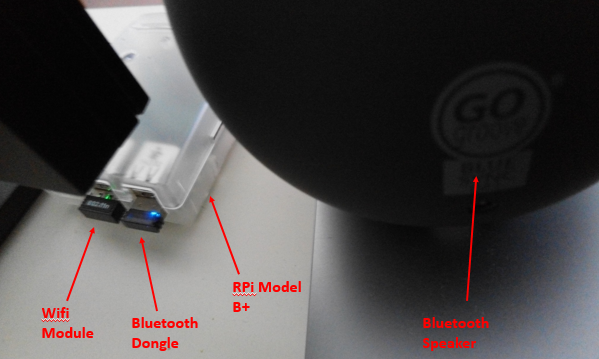
My hardware setup is the same as shown in my previous post. The differences start on the software setup side. Assuming you already flash fresh Raspbian on your Pi (Mine is Raspbian Jessie dated on 2nd March 2017). Firstly we need to install additional packages using command below.
  • sudo apt-get update && sudo apt-get upgrade
  • sudo apt-get install alsa-utils bluez bluez-tools pulseaudio pulseaudio-module-bluetooth
Once installation complete. Type in command below to make sure PulseAudio is working. Use any command below for verification.
  • pactl list sources short (List available audio sources with simplified format)
  • pactl list sources (List available audio sources with more details)
Above command should provide you a list audio sources available. By now you should see only one audio source. Below is the output example from my Raspberry Pi using command pactl list sources short.
  • 0       alsa_output.platform-soc_audio.analog-stereo.monitor    module-alsa-card.c      s16le 2ch 44100Hz       SUSPENDED
If you see same output above in your Pi that means your PulseAudio is working properly. Here are some simple explanation on the output. 0 means the unique id of your audio source, alsa_output.platform-soc_audio.analog-stereo.monitor is the name of your audio source, module-alsa-card.c is the driver name, s16le 2ch 44100Hz is audio source's sample specification and SUSPENDED means the audio source state is currently suspended.

Next, it is time for us to setup the bluetooth speaker. Follow instructions below:
  1. Type in bluetoothctl in terminal to enter bluetooth command line terminal. You should see the next line in terminal start with [bluetooth]# once you press enter.
  2. Type in power on and press enter. You should see output "Changing power on succeeded" from terminal.
  3. Type in agent on and press enter. You should see output "Agent registered" from terminal.
  4. Type in default-agent and press enter. You should see output "Default agent request successful" from terminal.
  5. Type in discoverable on and press enter. You need to key in this command to make sure your bluetooth dongle is visible to your bluetooth speaker. You should see output "Changing discoverable on succeeded [CHG] Controller XX:XX:XX:XX:XX:XX Discoverable: yes" from terminal. The string XX:XX:XX...XX is your bluetooth dongle's mac address.
  6. [Optional] If you see message from terminal state "[CHG] Controller XX:XX:XX:XX:XX:XX Discoverable: no", just repeat step 5 to make your device discoverable again.
  7. Turn on your bluetooth speaker and set it to pairing mode. (Follow your bluetooth speaker manual to set it to pairing mode)
  8. Type in scan on to start scanning for bluetooth devices. You should see a similar message "[NEW] Device YY:YY:YY:YY:YY:YY BLUE SYNC OR3". For my case my bluetooth speaker name is Blue Sync OR3. YY:YY:YY...YY is the bluetooth speaker mac address.
  9. Type in pair YY:YY:YY:YY:YY:YY to pair with the bluetooth speaker. You will see a bunch of message and ends with message "[CHG] Device YY:YY:YY:YY:YY:YY Paired: yes Pairing successful" if pairing successful.
  10. Type in trust YY:YY:YY:YY:YY:YY to enable authentication-less connection with your bluetooth speaker. You should see a message "[CHG] Device YY:YY:YY:YY:YY:YY Trusted: yes".
  11. Type in connect YY:YY:YY:YY:YY:YY to establish connection to bluetooth speaker. You should see output "Attempting to connect to YY:YY:YY:YY:YY:YY [CHG] Device YY:YY:YY:YY:YY:YY Connected: yes Connection successful" from terminal if connection is successful.
  12. Type in exit to exit from bluetooth command line terminal.
Once you successfully establish connection to your bluetooth speaker, you should be able to see new bluetooth audio sink available in the Pi. To verify this, type in pactl list sinks short to check how many audio sinks available in your Pi. You should see output below:
  • 0       alsa_output.platform-soc_audio.analog-stereo    module-alsa-card.c     s16le 2ch 44100Hz        SUSPENDED
  • 1       bluez_sink.YY_YY_YY_YY_YY_YY    module-bluez5-device.c  s16le 2ch 44100Hz       SUSPENDED
The second output show in terminal is my bluetooth speaker's audio sink. The name of the device usually similar to bluez_sink.YourDeviceMacAddress. If you see this in your Pi, that means PulseAudio is picking up your bluetooth speaker properly.

Now that we have almost everything ready, the trick is to redirect whatever source that is playing in Raspberry Pi and send the audio signal to your bluetooth speaker. To do this, we need to send another command to PulseAudio so that it will establish an audio link between the source and sink. Now remember in earlier section where we use one command to verify PulseAudio after its installation? That is the method we identify the audio source. We've already identify the name of the source audio to be alsa_output.platform-soc_audio.analog-stereo.monitor and its unique id is 0. We also know that our audio sink name is bluez_sink.YY_YY_YY_YY_YY_YY and its unique id is 1. Let's key in command below to establish the link between the require source and sink.
  • pactl load-module module-loopback source=0 sink=1 rate=44100 adjust_time=0
Once you enter the command, key in top in terminal and you should see pulseaudio is utilizing around 11-12% of your CPU power. This indicates you successfully establish the link between audio source and sink. Press Q to quit top.

Lastly we need to test whether the bluetooth speaker is playing the audio properly. Similar to my previous post, I'll use mplayer to test it, so go ahead and install mplayer by type in command sudo apt-get install mplayer2. Wait for the installation to complete.

I will recommend to set the source volume to 50% first because by default it is set to 100%. If you play a song using 100% i think it is not going to be pleasant to your ear. So go ahead type in pactl set-source-volume 0 32768 in your command line and press enter. 0 is the unique id of your source audio and 32768 represent 50% of volume. If volume = 100% the value is 65536. So if you want to set your own level of volume by percentage X, the formula is (X * 65536 / 100). You can verify the current volume level by type in command pactl list sources, Look for details under "Source#0 -> Volume:".

Once mplayer2 installation complete, simply upload one MP3 file to your Pi for testing. In command line, type in mplayer -ao help to list available audio output driver visible to mplayer. You should see one PulseAudio driver in the output. The output look like this "pulse   PulseAudio audio output".

Type in command mplayer -ao pulse path_to_your_song.mp3 to start playing a song. You should be able to hear the song playing from your bluetooth speaker. It will play exactly like video shown in my previous post.


Thanks for reading! Enjoy playing with your bluetooth speaker using latest Raspbian Jessie!


Additional note:
  1. To remove the link between audio source and sink when you are not using it. Simply type in command pactl unload-module module-loopback.
  2. pacmd set-source-volume 0 32768 command works as well to set source volume.
  3. You can also set sink volume using command pacmd set-sink-volume 1 32768. Remember use pactl list sinks short command to find out the unique id of your desired bluetooth speaker.


Reference:
https://gist.github.com/oleq/24e09112b07464acbda1

Thursday, January 1, 2015

Audio Streaming to Bluetooth Speaker Using Raspberry Pi B+

Edit 2016Jan3: This guide was based on old Raspbian Wheezy distro, some packages were no longer included in latest Raspbian Jessie distro. I'll have a look on how to make the old setting works on Raspbian Jessie.

Edit 2017May14: Finally found a way to make it work on Raspbian Jessie distro. Please refer to this link for instructions to setup bluetooth speaker.

Hi~ Here is a small project for my new RPi B+. So i got some bluetooth peripherals lying around the house, so i thought i can make a small music box using RPi. Did some research and got it working!

So here are what you need for the hardware:
  1. RPi Model B+ with Raspbian Installed (Should work with model B or A)
  2. Bluetooth Speaker
  3. USB Bluetooth dongle
  4. USB Wifi dongle / LAN cable for internet connection
  5. 5V 1A/2A Power Supply
Figure6: Hardware Setup
 If you have everything ready for the hardware. You need to install some packages to your RPi before you can connect to your bluetooth speaker. Boot up your RPi, but do not plug in your bluetooth dongle yet. Open up terminal and enter commands below for installation of the required packages.
  1. "sudo apt-get update && sudo apt-get upgrade" - upgrade your Raspbian packages list to latest version. Wait for program to finish upgrade before next command.
  2. "sudo apt-get install bluetooth bluez bluez-utils bluez-alsa blueman" - install five packages for bluetooth dongle and bluetooth audio. Wait for installation to complete before next command.
  3. "sudo usermod -a -G lp pi" - this command will add "lp" group under account "pi". You account need to have access to this group for this to work. If you are using other account, just replace the "pi" in command with your account name.
  4. "sudo nano /etc/bluetooth/audio.conf" - you need to add some command in the audio.conf file. This command will open nano text editor and allow you to edit the file. You need to add in two line in the file. "Enable=Source,Sink,Socket" and "Disable=Media". Refer to Figure1 and Figure2 below. After edit file, press Ctrl+O and Enter to save the file.
    Figure1: Editing audio.conf file
    Figure2: Add in highlighted two lines in audio.conf file
  5. Once save the file, enter command "sudo shutdown -h -P now" to safe shutdown the Pi. Once you see green light blip for 10 times. You can turn off the power supply.
  6. Now plug-in your bluetooth dongle to the USB and start up your RPi.
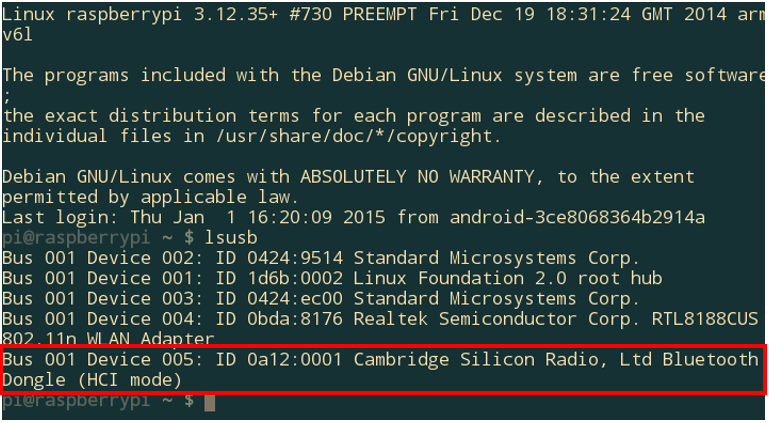
  7. Wait for boot complete, go to terminal and enter command "lsusb". You should see your bluetooth dongle available as shown in Figure3. You can refer HERE for list of working bluetooth adapter for RPi in case your bluetooth dongle is not detectable.
    Figure3: Bluetooth Dongle Detected in USB list
  8. If you able to find your bluetooth dongle in USB list, you should see a Bluetooth icon at your RPi tray. If you did not boot up your Pi in GUI and you are in command line interface, enter "startx" to start your GUI session. Refer to Figure4 below to setup your bluetooth connection with your bluetooth speaker with 3 simple steps.
    Figure4: Setup Bluetooth Connection with Your Bluetooth Speaker
  9. Follow up on step 8. You can also click "Trusted" on the device as shown in Figure4 if you want to let the speaker auto connect to RPi in the future. Mine is showing "Untrust" because i've already "Trusted" this device.
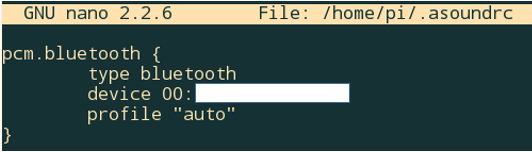
  10. Open up terminal again to edit one last file. Enter "sudo nano ~/.asoundrc" and enter the script as shown in Figure5. For line start with "device 00:", that the place where you put your bluetooth speaker's MAC address. You can find you MAC address in Figure4. Copy and paste in to the script. Once done save the file and you are done setting up the bluetooth portion for RPi.
    Figure5: Script to Connect Bluetooth to Alsa
  11. If you completed the steps up to 10, you are almost ready. You just need to install one more package so that you RPi can play music. In this case i recommend Mplayer because it is a terminal player that can support wide range of audio format including m4a. Go to terminal and enter "sudo apt-get install mplayer" and wait for installation complete.
  12. Once you complete installation of mplayer. Navigate to your music folder using terminal and then enter command "mplayer -volume 10 -ao alsa:device=bluetooth youmusic.mp3" to play music.
  13. You should be able to listen to your music from bluetooth speaker from now. 
  14. Here is the video showing the working bluetooth speaker using RPi.

Hope you like this tutorial. Thanks for your time!

Reference:
http://elinux.org/RPi_USB_Bluetooth_adapters
http://www.correderajorge.es/bluetooth-on-raspberry-audio-streaming/